
Open This Test On Your Phone
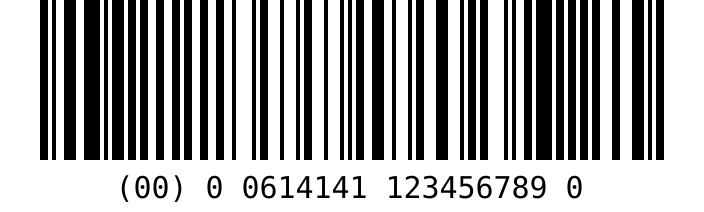
Scan the QR code with your phone's camera to open this page there. Tap Start, then point the phone at the barcode below.
Ready When You Are
Tap Start and allow the camera. Then hold the phone 6 to 12 inches from the test barcode, with the barcode inside the frame.
The camera runs inside this page only. Nothing is recorded, stored or sent anywhere.
Starting the camera...
Compatible
Your phone read an SSCC barcode , using .
That is the barcode E-Manifest scans at pickup, at delivery and at the Fed dock. Now try a real barcoded bag: plastic wrap, creases and print quality all make a difference.
The Camera Did Not Start
If It Won't Read
- Fill most of the frame with the barcode, and move closer or farther until it looks sharp.
- Hold steady for a second. Phones focus best on something still.
- On a computer screen, turn the brightness up and tilt the screen to cut glare.
- A printed barcode reads more like a real bag than a screen does. Use Print below.
- Still nothing after a minute? Tell us the phone model and we will look into it.
The Test Barcode
An SSCC in the GS1-128 format that GS1 US specifies for cash bags. It uses GS1 US's example company number, so it can never match a real bag.
What A Pass Means
A pass shows the phone and its camera can read E-Manifest bag barcodes in a web app, with nothing to install. It does not test the rest of the job: the What-to-Expect files, the e-receipts and the Fed connection. Our plain guide to E-Manifest covers those, and we are glad to talk it through.